
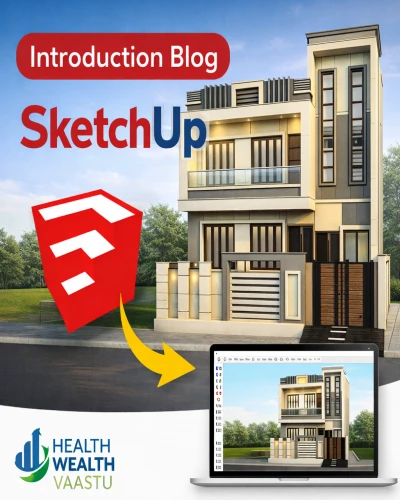
आज के समय में Vaastu-based home planning और 3D visualization दोनों का बहुत बड़ा महत्व है।
Health Wealth Vaastu का उद्देश्य केवल Vaastu guidance देना ही नहीं, बल्कि clients और students को practical design understanding भी देना है।
इसी दिशा में SketchUp एक powerful और easy-to-use 3D design software है, जो Vaastu compliant house planning, interior-exterior design और visualization के लिए बहुत उपयोगी है।
इस ब्लॉग में हम SketchUp Class 1 के अंतर्गत SketchUp के basics को step-by-step समझेंगे।
SketchUp एक 3D Designer Software है, जिसका उपयोग building और space planning के लिए किया जाता है।
पहले SketchUp को Google ने develop किया था
बाद में इसे Trimble Company ने acquire किया
आज SketchUp architecture, construction, interior design और Vaastu-based planning में widely used software है।
SketchUp का उपयोग निम्न कार्यों के लिए किया जाता है:
🏠 Vaastu-based घर का नक्शा (House Map Planning)
🏢 Residential & Commercial building design
🪑 Furniture layout planning
🛋️ Interior & Exterior design visualization
👉 Vaastu consultants के लिए SketchUp इसलिए महत्वपूर्ण है क्योंकि client को direction, space balance और energy flow visually समझाया जा सकता है।
SketchUp software के interface में ये मुख्य sections होते हैं:
Menu Bar – सभी commands और settings
Drawing Bar – drawing related tools
Toolbar – frequently used tools
Measurement Box – accurate dimensions के लिए
Accurate measurement Vaastu planning में अत्यंत आवश्यक होता है।
SketchUp start करते समय अलग-अलग Templates दिखाई देते हैं:
Measurement system अलग-अलग होता है
Inch
Feet
Meter
“Show More” पर क्लिक करने से सभी templates दिखते हैं और उनका background भी अलग होता है।
👉 Health Wealth Vaastu planning में हम Feet या Inch measurement का उपयोग करते हैं, ताकि site dimensions सही तरीके से follow हों।
SketchUp में तीन Axis होते हैं, जो direction समझने में मदद करते हैं:
🔴 Red Axis – Right Arrow Key
🟢 Green Axis – Left Arrow Key
🔵 Blue Axis – Up Arrow Key (Axis lock करने के लिए)
👉 जब lines पूरी तरह बंद होती हैं, तो Surface बन जाता है, जो room या area को represent करता है।
Vaastu में directions का correct alignment बहुत जरूरी है, और SketchUp इसमें काफी मदद करता है।
सभी important tools देखने के लिए:
View → Toolbars → Large Tool Set
यह Vaastu planning और detailed modeling के लिए recommended setup है।
Orbit (O) – Mouse Scroll Button
Pan Tool (H) – Shift + Scroll
Zoom – Mouse Scroll
Push/Pull Tool (P) – Height और depth देने के लिए
Selection Tool – Space Bar
Selection Shortcuts:
Double Click – Surface + Edges select
Triple Click – पूरा object select
Ctrl – Selection add
Shift – Reverse selection
👉 Push/Pull tool के साथ Ctrl key दबाने पर नया surface create होता है।
AutoCAD की तरह ही SketchUp में भी:
Left to Right – Window Selection
Right to Left – Crossing Selection
Group (+) – Objects को safe रखने के लिए
Component (G) – Reusable elements जैसे doors, windows, furniture
👉 Shortcut बनाने के लिए:
Window → Preferences → Shortcuts → Filter → Make Group → Add Shortcut
Move Tool (M)
Move करते समय X14 लिखने पर 14 copies बनती हैं
Objects के बीच equal distance रखने के लिए /14 लिखें
👉 इससे Vaastu-based symmetry और balance आसानी से achieve किया जा सकता है।
SketchUp एक powerful yet simple 3D software है, जो Health Wealth Vaastu के Vaastu planning approach को practical और visual बनाता है।
SketchUp Class 1 में आपने सीखा:
SketchUp का परिचय
Interface और measurement system
Axis, tools और shortcuts
Vaastu-friendly planning के basics
आने वाली classes में हम:
Vaastu-based house plan
Room positioning
Practical 3D modeling
Client presentation techniques
पर focus करेंगे।
🤖 AI Tools & Technology Credits
इस लेख को आसान, स्पष्ट और उपयोगी बनाने के लिए आधुनिक AI तकनीकों की सहायता ली गई है।
इन टूल्स की मदद से रिसर्च, कंटेंट लेखन, डिजाइन, SEO और वीडियो क्रिएशन तेज़, सटीक और प्रोफेशनल तरीके से किया गया है।
हम इन सभी AI प्लेटफॉर्म्स का आभार व्यक्त करते हैं जिन्होंने सीखने और सिखाने की प्रक्रिया को सरल और प्रभावी बनाया।
यदि आप भी ब्लॉग, स्टडी नोट्स, प्रोजेक्ट या डिजिटल कंटेंट बनाना चाहते हैं, तो इन टूल्स का उपयोग अवश्य करें:
🔹 OpenAI ChatGPT – AI Content Writing & Ideas
https://chat.openai.com
🔹 Google Gemini – Smart Research Assistant
https://gemini.google.com
🔹 Canva – Graphics & Design Creation
https://www.canva.com
🔹 Google Flow – AI Video Creation Tool
https://labs.google/flow
🔹 InVideo – AI Video Maker & Reels Creator
https://invideo.io
🔹 Ubersuggest – SEO & Keyword Research Tool
https://neilpatel.com/ubersuggest
🔹 Remove.bg – Background Remover for Images
https://remove.bg
🔹 ElevenLabs – AI Voiceover Generator
https://elevenlabs.io
🔹 Microsoft Copilot – Documents & Office Productivity AI
https://copilot.microsoft.com
✨ AI tools के साथ सीखें, तेज़ी से बढ़ें और अपने काम को प्रोफेशनल बनाएं।
— Team Health Wealth Vaastu
Copyright © 2026 Health Wealth Vaastu All rights reserved
Privacy Policy Terms & Condition Refund & Cancellation Site Map
all comments