
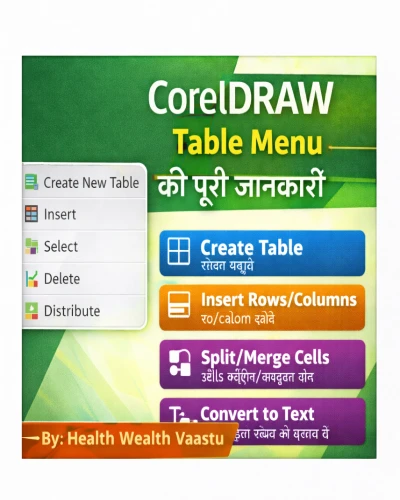
Table Menu bar
* Table Menu → Create New Table → Select Number of Roun
→ Number of Columns.
→ Height:
→ Width:
→ Than ok
Select Shape Tool → Then Change Table Height and width
* Insert Row and Column
Select Row → Table Menu → Insert → Select Insert Row → OK
Select Column → Table Menu → Insert → Select Insert Colum above and below → OK
* Select option
Table Menu → Select → Cell/Row/Column/Table → OK
* Delete Option
Table Menu → Delete Row/Colomn/Table → OK
* Distribute Option
Table Menu → Distribute → Row Evenly (equel Row height and width) → ok
Table Menu → Distribute → Columns Evenly (equal Columns height and wigth) → ok
* Merge cells (Ctrl+ M)
Select Cells → Table Manu → Marge Cells → OK
* Ummerge Cells
Select Cells → Table Menu Unmerge Cells → OK
* Split into Rows
Select Cells → Table Menu → Split into Rows → Numbers of rows: (any no.) → OK
* Split into colums
Select Cells → Table Menu → Split Colums → Numbers of Colums: (any no.) → OK
* Convert Text to Table
Type any text → Table Menu → Convert Text to table → Commas/ Tabs / Paragraphs / Use defined (Select any one option) → OK Note →Table की Size कम होगी तो वह Red deash के रूप में दिखेगा उसे ठीक करने के लिए हम Table की Size को बढ़ाएंगे।
* Convest Table to Text
Select Table → Table Menu → Convert Table to Text → Commas/Tabs/Paragraphs/Use defined (Select anyone option) → ok
इससे Table Text में बदल जाएगी।
CorelDRAW का Table Menu Graphic Designing में Professional Layout बनाने के लिए बहुत जरूरी है। यदि आप Bill Format, School ID Card, Report Design, Flex, Banner या Price List Design बनाना चाहते हैं, तो Table Menu की पूरी जानकारी होना आवश्यक है।
Health Wealth Vaastu पर आपको CorelDRAW, Photoshop और Graphic Designing से जुड़े Complete Hindi Tutorials मिलेंगे।
👉 Go to
previous blog - https://healthwealthvaastu.com/blog-detail/coreldraw-text-menu-bar-hindi-guide
Next blog- https://healthwealthvaastu.com/blog-detail/coreldraw-window-menu-bar-hindi-tutorial
👉 Graphic Designing Course और Professional Training के लिए हमारी वेबसाइट विजिट करें:
🌐 https://healthwealthvaastu.com/
🤖 AI Tools & Technology Credits
इस लेख को आसान, स्पष्ट और उपयोगी बनाने के लिए आधुनिक AI तकनीकों की सहायता ली गई है।
इन टूल्स की मदद से रिसर्च, कंटेंट लेखन, डिजाइन, SEO और वीडियो क्रिएशन तेज़, सटीक और प्रोफेशनल तरीके से किया गया है।
हम इन सभी AI प्लेटफॉर्म्स का आभार व्यक्त करते हैं जिन्होंने सीखने और सिखाने की प्रक्रिया को सरल और प्रभावी बनाया।
यदि आप भी ब्लॉग, स्टडी नोट्स, प्रोजेक्ट या डिजिटल कंटेंट बनाना चाहते हैं, तो इन टूल्स का उपयोग अवश्य करें:
🔹 OpenAI ChatGPT – AI Content Writing & Ideas
https://chat.openai.com
🔹 Google Gemini – Smart Research Assistant
https://gemini.google.com
🔹 Canva – Graphics & Design Creation
https://www.canva.com
🔹 Google Flow – AI Video Creation Tool
https://labs.google/flow
🔹 InVideo – AI Video Maker & Reels Creator
https://invideo.io
🔹 Ubersuggest – SEO & Keyword Research Tool
https://neilpatel.com/ubersuggest
🔹 Remove.bg – Background Remover for Images
https://remove.bg
🔹 ElevenLabs – AI Voiceover Generator
https://elevenlabs.io
🔹 Microsoft Copilot – Documents & Office Productivity AI
https://copilot.microsoft.com
✨ AI tools के साथ सीखें, तेज़ी से बढ़ें और अपने काम को प्रोफेशनल बनाएं।
— Team Health Wealth Vaastu
Copyright © 2026 Health Wealth Vaastu All rights reserved
Privacy Policy Terms & Condition Refund & Cancellation Site Map
all comments